
Introduction
If you have forgotten your WordPress password or simply want to update it for security reasons, you can reset it yourself using the "Lost your password?" feature on the login screen. Follow the steps below to regain access to your account.
Step-by-Step Instructions
-
Navigate to the Login Page Go to your website's login URL. This is typically found at
yourdomain.com/wp-admin.phporyourdomain.com/wp-login.php. -
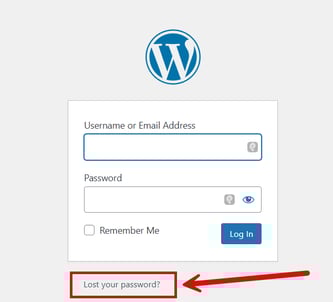
Select "Lost your password?" Below the login fields, click the link labeled Lost your password?.
-
Enter Your Credentials On the next screen, enter either your Username or the Email Address associated with your account. Click the Get New Password button.
-
Check Your Email Go to your email inbox and look for a message from your WordPress site (Subject line is usually: "[Site Name] Password Reset").
-
Note: If you do not see the email within a few minutes, please check your Spam or Junk folder.
-
-
Click the Confirmation Link Open the email and click the link provided at the bottom to verify your request.
-
Set Your New Password You will be redirected to a page where you can create a new password.
-
WordPress will automatically generate a strong password for you. You can keep this or type a new one.
-
Tip: Make sure to use a mix of letters, numbers, and symbols for better security.
-
-
Save and Log In Click Save Password. You can now log in to your dashboard using your new credentials.
Troubleshooting
-
Email not arriving? Ensure your website can send emails. If you continue to have issues, contact our team support@kingswooddigital.com.
-
Link expired? Password reset links are valid for a limited time. If the link no longer works, restart the process from Step 1.