
Connecting Your Domain to WP Engine
Last Updated: October 2, 2025
Applies to:
All Kingswood Digital clients with new or existing websites hosted on WP Engine.
All Kingswood Digital clients with new or existing websites hosted on WP Engine.
Common Causes/Issues:
- You’ve launched a new website and need to point your domain to WP Engine.
- You’re migrating from another host (e.g., GoDaddy, Bluehost, HostGator) to
WP Engine. - Your website is not resolving because DNS settings aren’t updated.
Solution Overview:
💡 Did you know? — WP Engine can automatically connect with most registrars via Entri and update your DNS records without any manual interaction. This is the recommended method for connecting domains as there is minimal room for human error.
To connect your domain to WP Engine, you’ll need to update your domain’s DNS records to point to your WP Engine environment. This involves:
- Locating your WP Engine CNAME or A record.
- Logging into your domain registrar (e.g., GoDaddy, Namecheap).
- Updating DNS settings to match WP Engine’s requirements.
Tactical Rundown:
Step 1: Locate Your WP Engine DNS Information
- Log in to your WP Engine User Portal.
- Select your environment.
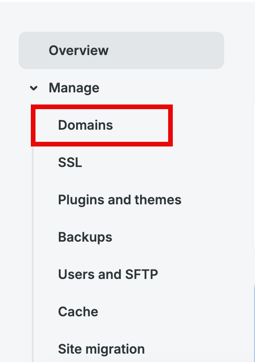
- Find the “Domains” tab—note the CNAME or A record provided for your environment.
Step 2: Log in to Your Domain Registrar
- Go to your domain registrar’s website (e.g., GoDaddy, Namecheap).
- Sign in to your account.
- Navigate to your domain’s DNS management page.
Step 3: Update DNS Records
- If using CNAME:
- Edit the “www” or root domain record to point to your WP Engine CNAME (e.g., environment.wpengine.com).
- If using A record:
- Update the A record to point to the IP address provided by WP Engine.
- Save your changes.
Step 4: Verify Domain Connection
- Return to the WP Engine User Portal.
- Use the “Check DNS” tool to verify your domain is correctly configured.
- Allow up to 24-48 hours for DNS changes to propagate.
- You can check what DNS servers are currently pinging on your website by navigating to (https://dnschecker.org)